When you are composing text directly into a web application such as Online TLDS you will need to rely on the spell checker built into your browser. To improve your experience, you can set the spell checker to English (Australia)
- Click the ellipses button in the top right corner of the Chrome browser toolbar.
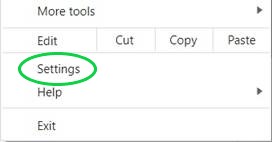
- From the menu select Settings towards the bottom of the menu.
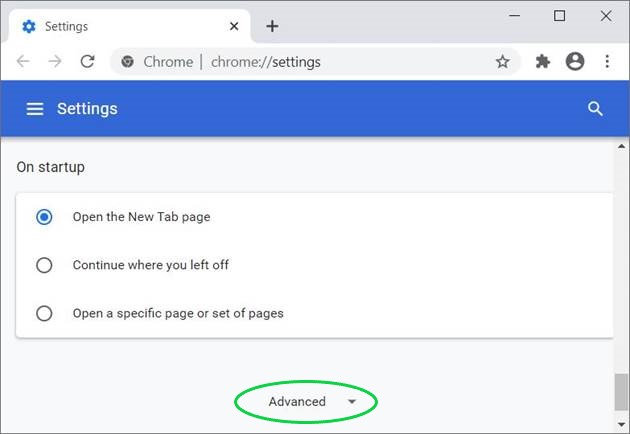
- Scroll down the settings and click the Advanced button.
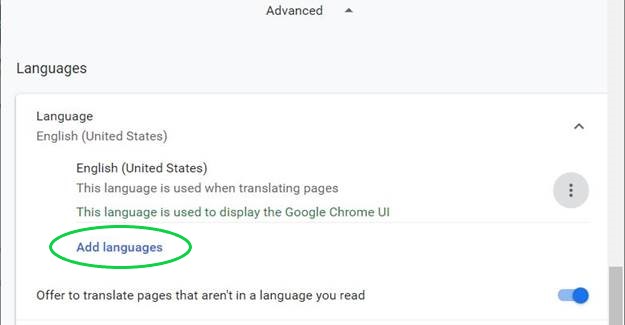
- In the Languages section you can click Add Languages.
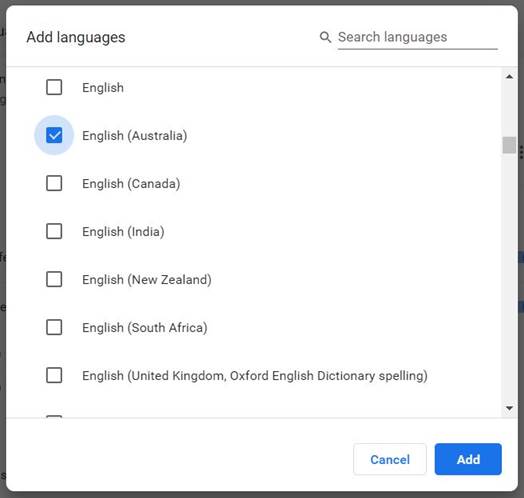
- Select English (Australian) from the list of languages, then click Add.
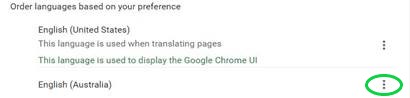
- English (Australia) will appear in the order of languages. Click on the ellipses button to the right of English (Australia)
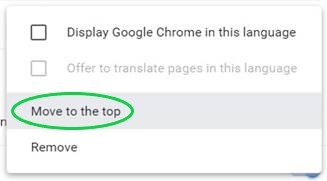
- From the pop-up menu click Move to the top until English (Australia) is at the top of the order.
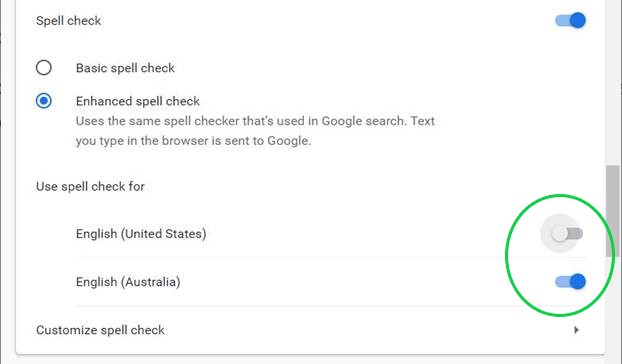
- Click the switch to turn on Spell check if it is not already enabled
- Select Enhanced spell check
- From the Spell check section, select English (Australia) and deselect English (American)
- You can choose to Customize spell check with words you manually add to Chrome’s dictionary but for now you are done. Close the settings tab.
Download a PDF version of this tip here: Tip 90 – Set Chrome spell check to English (Australia)