Multi-Factor Authentication (MFA)
Multi-Factor Authentication (MFA) adds an extra step to logging in by requiring both a password and a second verification method.
MFA is one of the best ways to protect against someone breaking into your account.
It makes it harder for cybercriminals to take over your account, by adding extra layers of protection.
Setup Guide
On your computer:
- Close the outlook app, or your web browser (depending on how you access your account)
On your phone/tablet:
- Download & open the app for android or iOS.
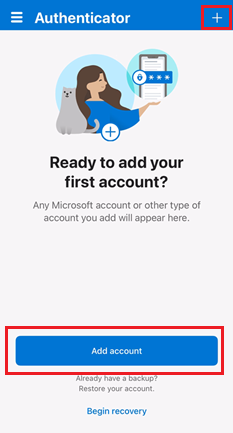
- Open the app and tap the + (plus) icon, located at the top right of the screen.
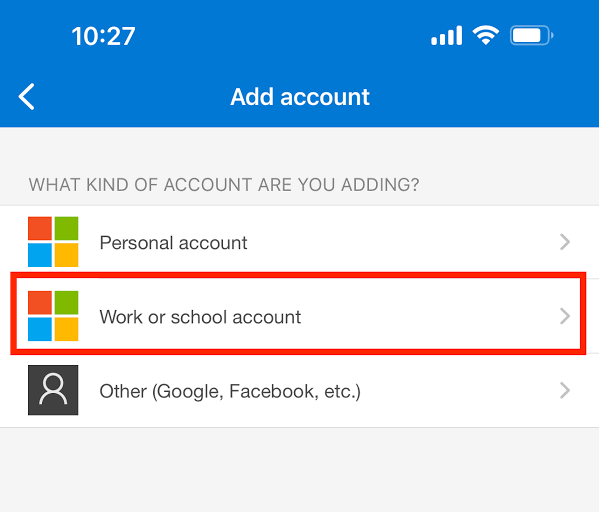
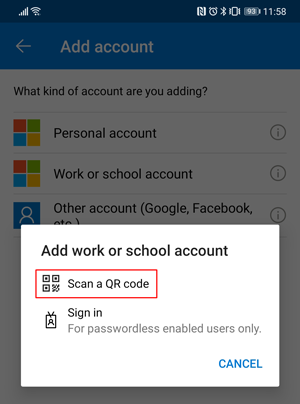
- Select Work or school account (and allow the app to send you notifications and to access your camera if required).
- Select ‘Scan a QR code’
On your computer:
- Open the outlook app, or go to webmail.
- If required, enter your account credentials and click Sign In.
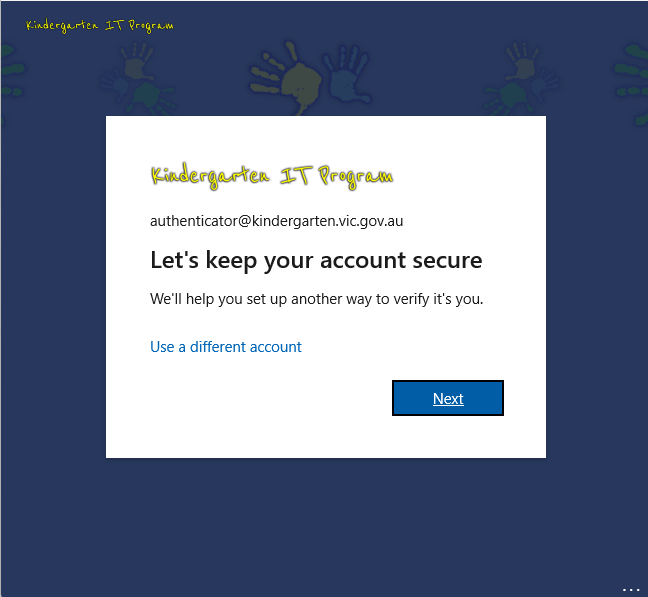
- Otherwise, press Next on the Let’s keep your account secure screen
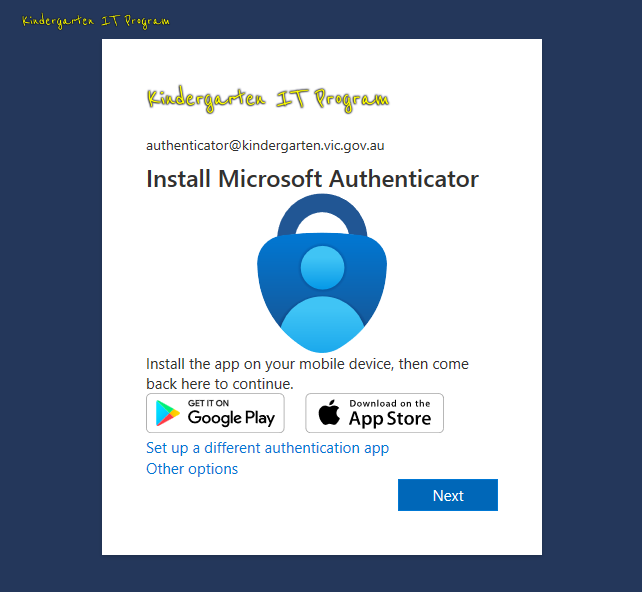
- Press Next on the Install Microsoft Authenticator screen
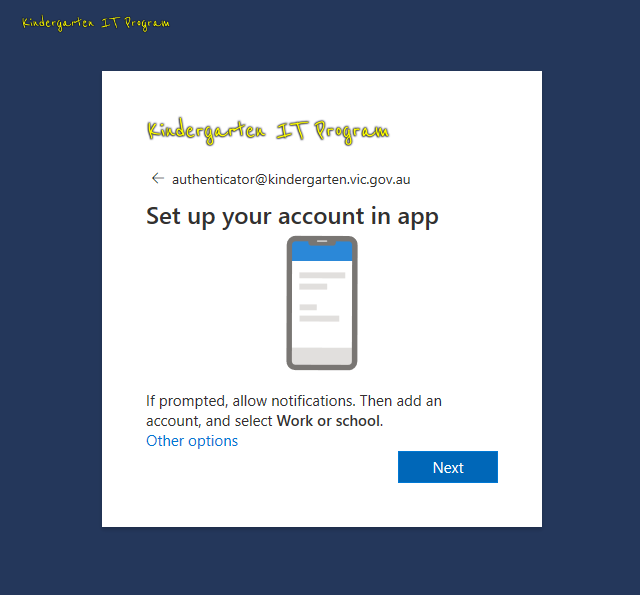
- Press Next on the Set up your account in app screen
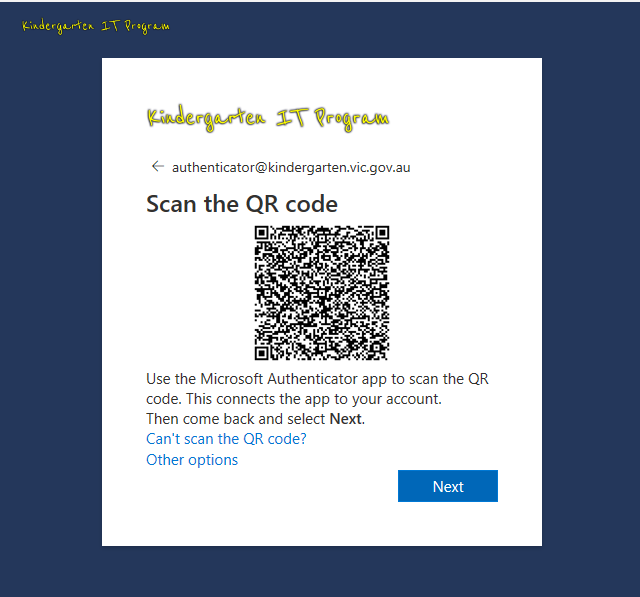
- A QR code will appear on your computer screen;
On your phone/tablet:
- Use your phone or tablet to scan the QR code on the computer screen
On your computer:
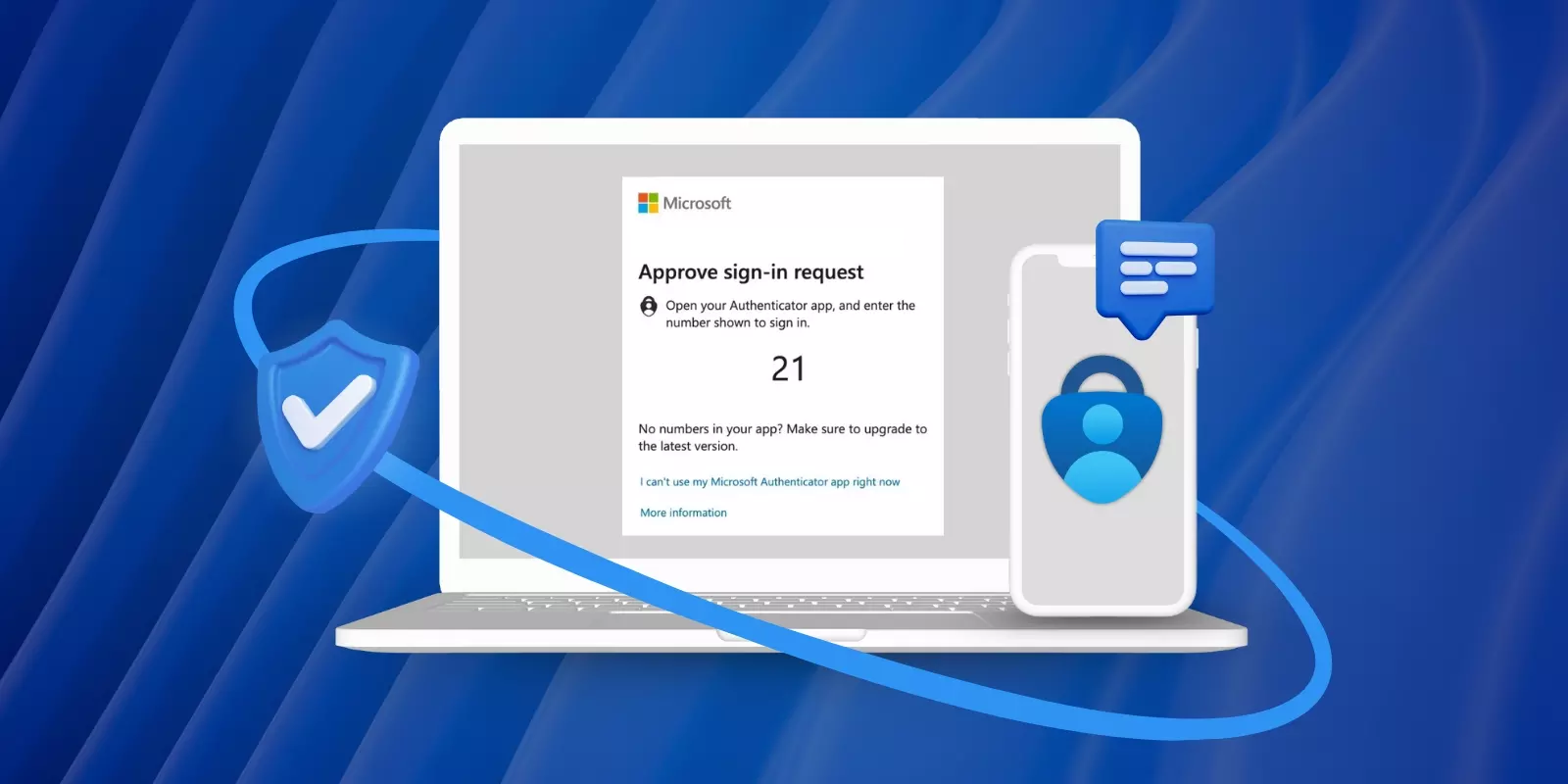
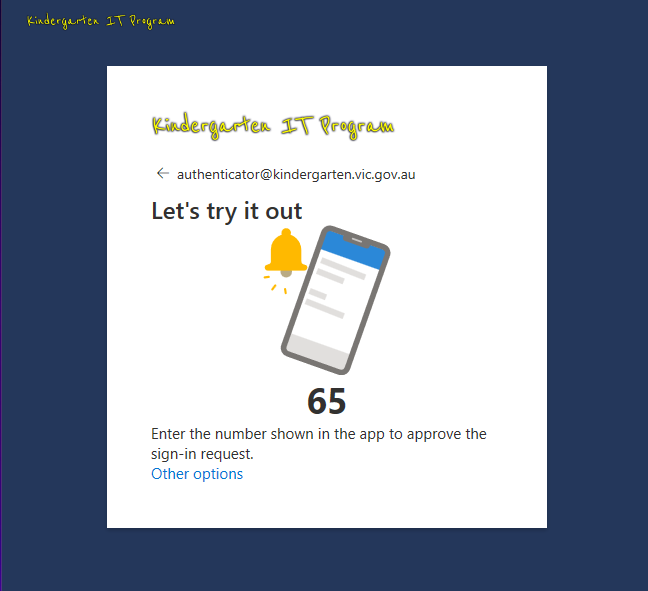
Click Next on your computer. Take note of the number displayed on your computer.On your phone/tablet:
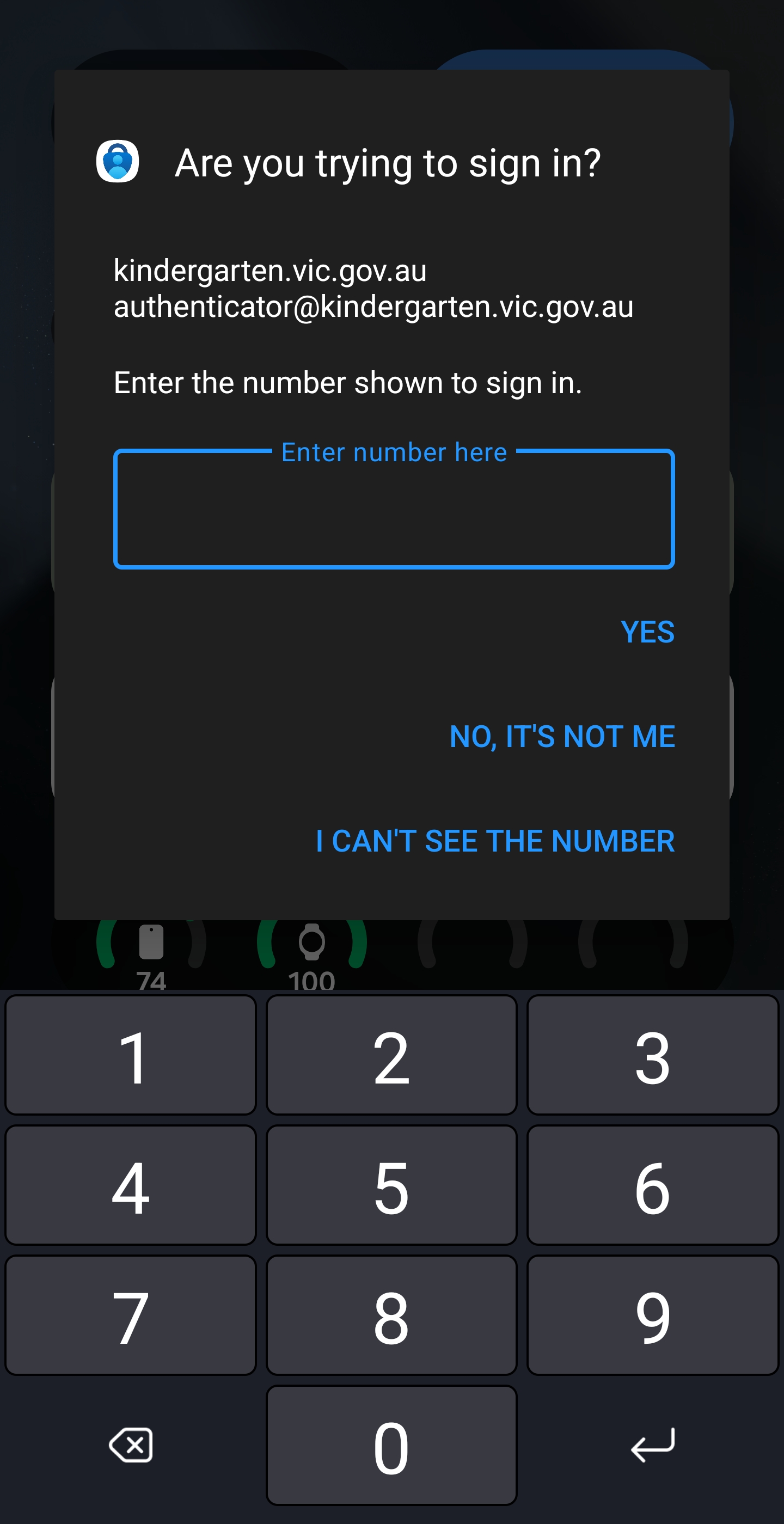
A test notification will be sent to your phone. Enter the number displayed on your computer and tap Yes.On your computer:
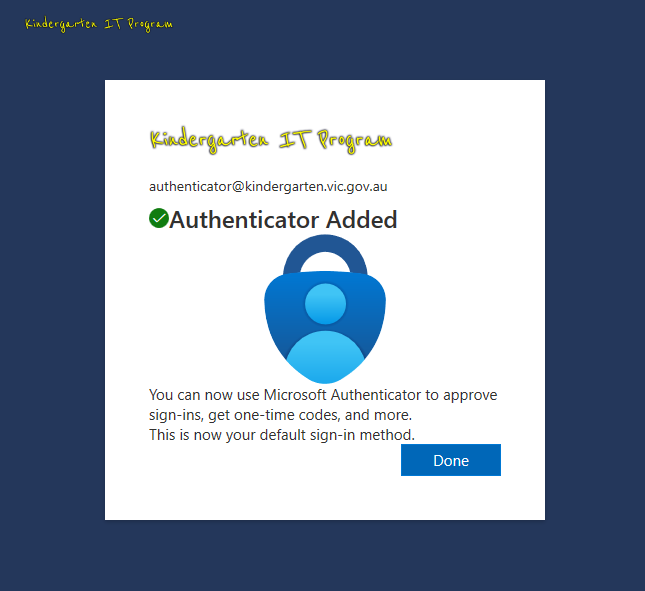
- Select Done.
Setup Guide
On your computer:
- Close the outlook app, or your web browser (depending on how you access your account)
On your phone/tablet:
- Download & open the app for android or iOS.
- Open the app and tap the + (plus) icon, located at the top right of the screen.
- Select Work or school account (and allow the app to send you notifications and to access your camera if required).
- Select ‘Scan a QR code’
On your computer:
- Open the outlook app, or go to webmail.
- If required, enter your account credentials and click Sign In.
- Otherwise, press Next on the Let’s keep your account secure screen
- Press Next on the Install Microsoft Authenticator screen
- Press Next on the Set up your account in app screen
- A QR code will appear on your computer screen;
On your phone/tablet:
- Use your phone or tablet to scan the QR code on the computer screen
On your computer:
- Click Next on your computer. Take note of the number displayed on your computer.
On your phone/tablet:
- A test notification will be sent to your device. Enter the number displayed on your computer and tap Yes.
On your computer:
- Select Done.
The activation of MFA will take place per center. Each center will have a different date on which MFA becomes mandatory. Your center will be informed in time about your specific start date.
Any new accounts created after 10th August 2026 will have MFA turned on by default.
The duration of a session remains the same as before. Within that session duration, you do not have to log in again via MFA.
E.g. if you use the Outlook desktop application for emails – once it’s setup, you’re unlikely to have to login again until you set it up on a new computer or device.
If you use the web version, or public computers where you aren’t permanently logged in, you will need to use MFA each time.
No, MFA is mandatory for all users.
MFA significantly enhances account security by requiring both a password and a second verification method. This reduces the risk of unauthorized access, even if login credentials are compromised.
You can find more information here.
Each user will need to setup MFA on their device.
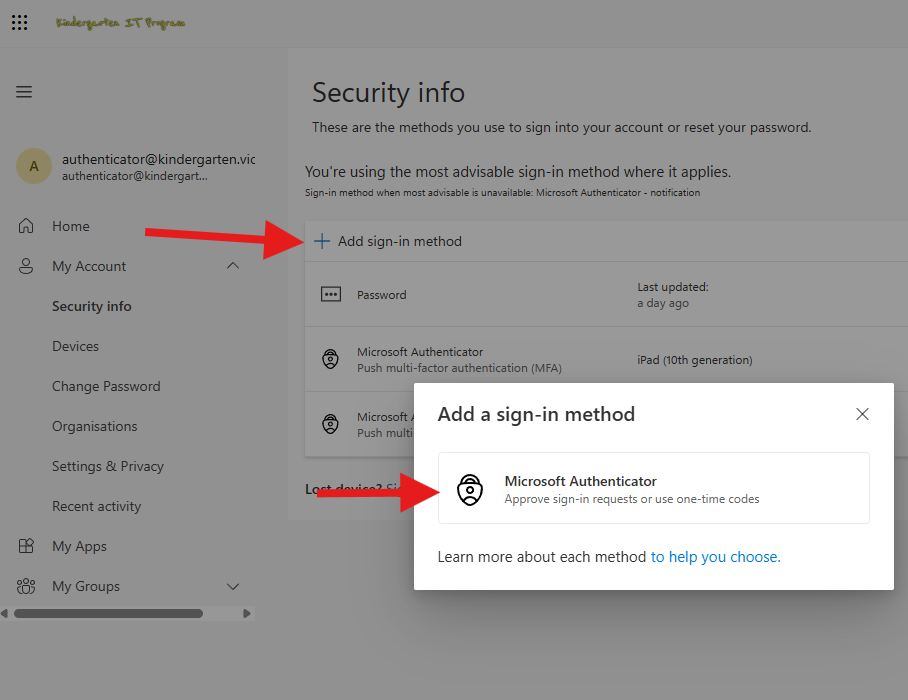
Go to https://aka.ms/mfasetup.
And follow the prompts to “Add sign-in method” for each user.
Yes, to setup MFA you will need to install an app. For example the Microsoft authenticator.
Unlike SMS or email codes, the codes generated by authenticator apps can’t be intercepted by hackers. This makes them a more secure form of MFA.
As SMS or email codes are not considered secure when using multifactor authentication, they have not been provided as an option to kindergartens.
Yes, you can activate MFA on multiple devices.
Go to https://aka.ms/mfasetup.
And follow the prompts to “Add sign-in method”
If you get a new device, you’ll have to transfer your authenticator app over to your new device. Make sure you don’t throw out your old device until you do, otherwise you may be locked out of your authenticator-protected accounts.
If you lose your device, recovering authenticator-protected accounts can be tricky. Our support staff will always be able to assist in re-registering you for MFA.
When working directly with children, teachers and educators cannot use personal devices to receive multi-factor authentication (MFA) messages.
Staff using kindergarten.vic.gov.au accounts should only be doing so when they are not providing education and care and working directly with children.
You will not be able to log into your account.
Once you have setup MFA, you will be enrolled in to self-service password resets, allowing you to reset your account password if you happen to forget it by using MFA to verify your identity.
Kindergarten IT Program staff will continue to be able to assist with password resets if required.