When sending electronic document via email, you need to take the following basic security steps:
Password-protect the Word document. To do this, open the word document.
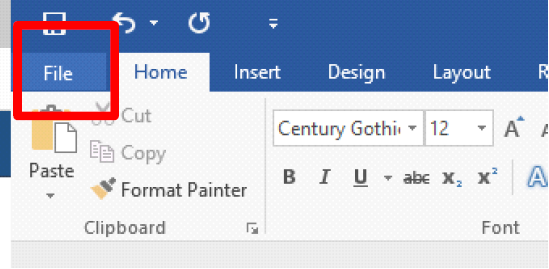
Go to “File” tab.
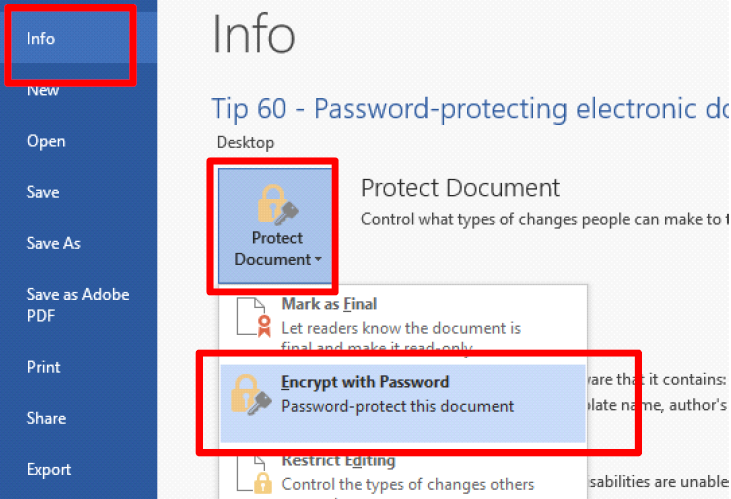
Under “Info”, click on “Protect Document” and select “Encrypt with Password”.
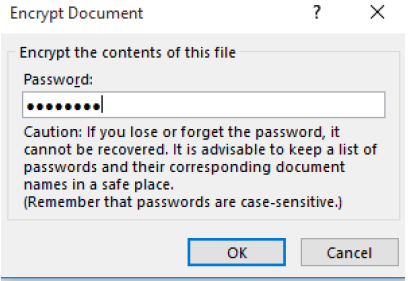
Enter the password (use a mixture of upper and lowercase letters and numbers), then press ‘OK’.
Send this password to the recipient(s) in an email for this purpose.
Attach the password-protected document to another email.
Send the password-protected document to the recipient – do not include the password in this email.
Note: Please print out and save your password safely into a folder and make sure it’s kept safely for your future reference. If you forgot or lost your password, there’s is NO way of recovering your documents and may have to recreate those documents again.