Guided Access is a setting that allows you to temporarily lock an iPad into one App at a time. This is particularly useful if you are using the iPad with children; they can stay focused on the activity and won’t be able to exit the game or access other features of the iPad until you unlock this feature with a pass code.
Note – This Tip is based on an iPad 2 IOS 7, different versions may vary. Guided Access is available in IOS 6 onward.
Enabled Guided Access on an iPad
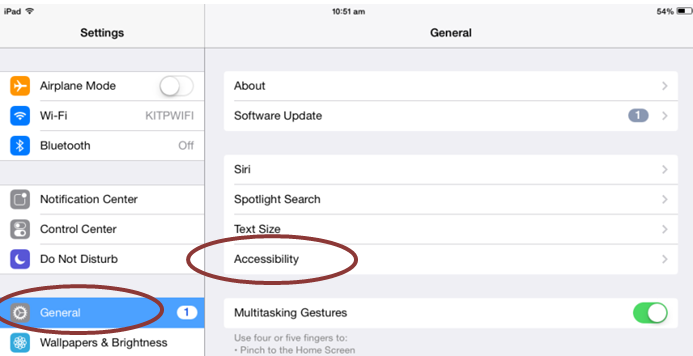
- Open the Settings App
- Tap on “General”, then tap “Accessibility”
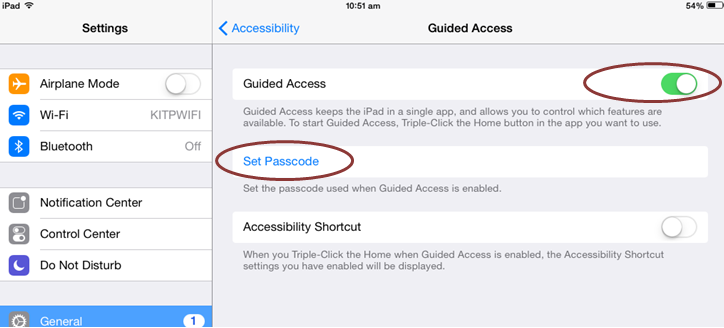
- Scroll down to “Guided Access” and switch it on. Tap “Set Pass code” and type a 4 digit pass code (This can be different to your iPad lock screen pass code).
Turn on Guided Access on an iPad
- Launch the App that you want to use, such as a game or story book
- Triple-click the Home button (press the Home button 3 times quickly)
- After triple-clicking the Home Button you will see the Guided Access screen, tap “Start” in the top right corner.
Turn Guided Access off on an iPad
- Triple-click the Home button again
- Enter the pass code to turn Guided Access off, tap “End” in the top left corner of the Guided Access Screen.