Reset Internet Explorer
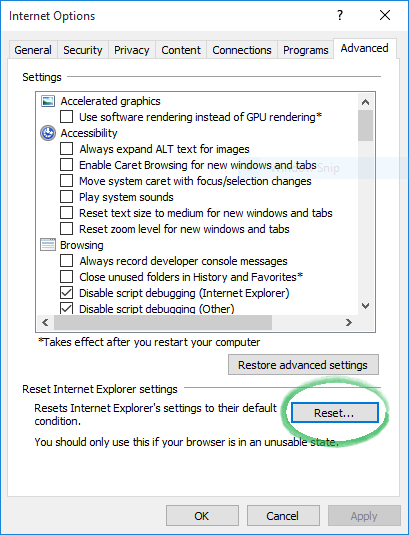
Click on Tools and select Internet Options.
Click on the Advanced tab.
Click on the Reset button.
Reset Chrome
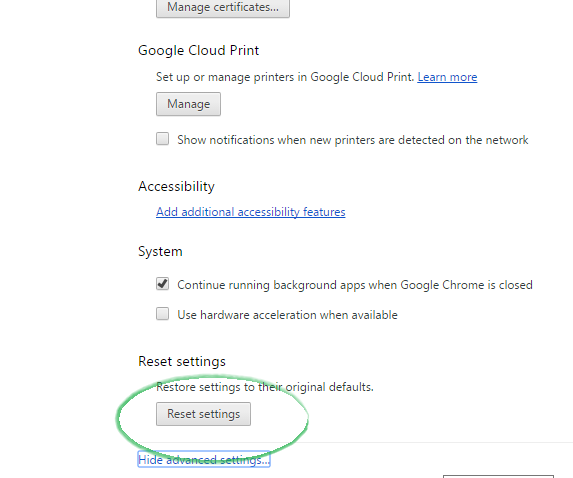
Click on Customize and control Google Chrome button
Click on Settings.
Click on Advanced Settings.
Click on the Reset settings button.
Reset Firefox
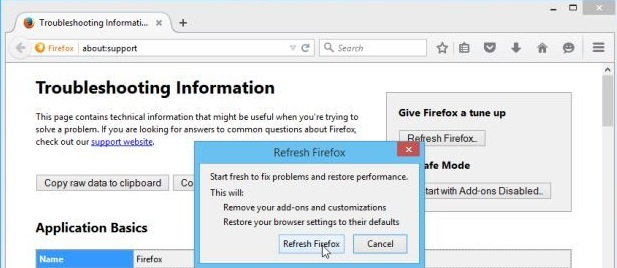
In the address bar of the FireFox. type in about:support and hit Enter.
Click Reset Firefox button.
A window will appear showing the details of this action. Click Reset Firefox button.
Download this Tip as a .PDF Tip – How to reset your browser